Capture a draft with Quick Hack
Open a small input window from another app, capture an idea, and return to it later in HackDesk. Capture creates a recoverable draft in the selected workspace; it does not save a Markdown file or create a remote HackMD note.
Prepare a destination
Open a Local Vault or connect HackMD and select a personal or team workspace before capturing. The History view is not a writable destination.
Capture an idea
- Keep HackDesk running and press Ctrl+Alt+H. On macOS, this is Control+Option+H, not Command.
- Type the text you want to keep.
- Choose Capture, or press Cmd+Enter on macOS, Ctrl+Enter on Windows/Linux.
- Open HackDesk when ready to edit and save the draft.
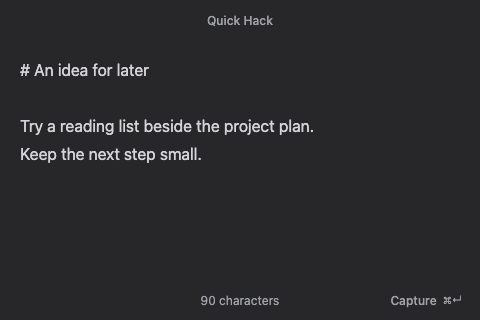
V2 development build with demonstration data.
From another app, successful capture closes the popup without bringing the main workbench forward. From HackDesk, it returns to the main window.
Save or resume a draft
Choose Save in the document toolbar to write the draft to its destination. Capture's recovery copy keeps the text available before that save.
Escape closes the popup without submitting and preserves the input for reopening. A failed capture keeps the text visible with an error. Copy the text if HackDesk reports that it cannot persist or back up the capture.
Check the global shortcut
Open Settings → Shortcuts and find Quick Hack. Global means the shortcut registered; Unavailable means registration failed, for example because another app owns it.
The global shortcut is fixed in this version. The tray menu's Quick Hack action (in the macOS menu bar) is another way to open the popup. Fully quitting HackDesk stops the global shortcut; closing the macOS main window can leave HackDesk running in the background.