
Work with notes
Choose a workspace, organize notes in folders, and keep related documents open in tabs or split panes. Get started covers opening a vault and connecting HackMD.
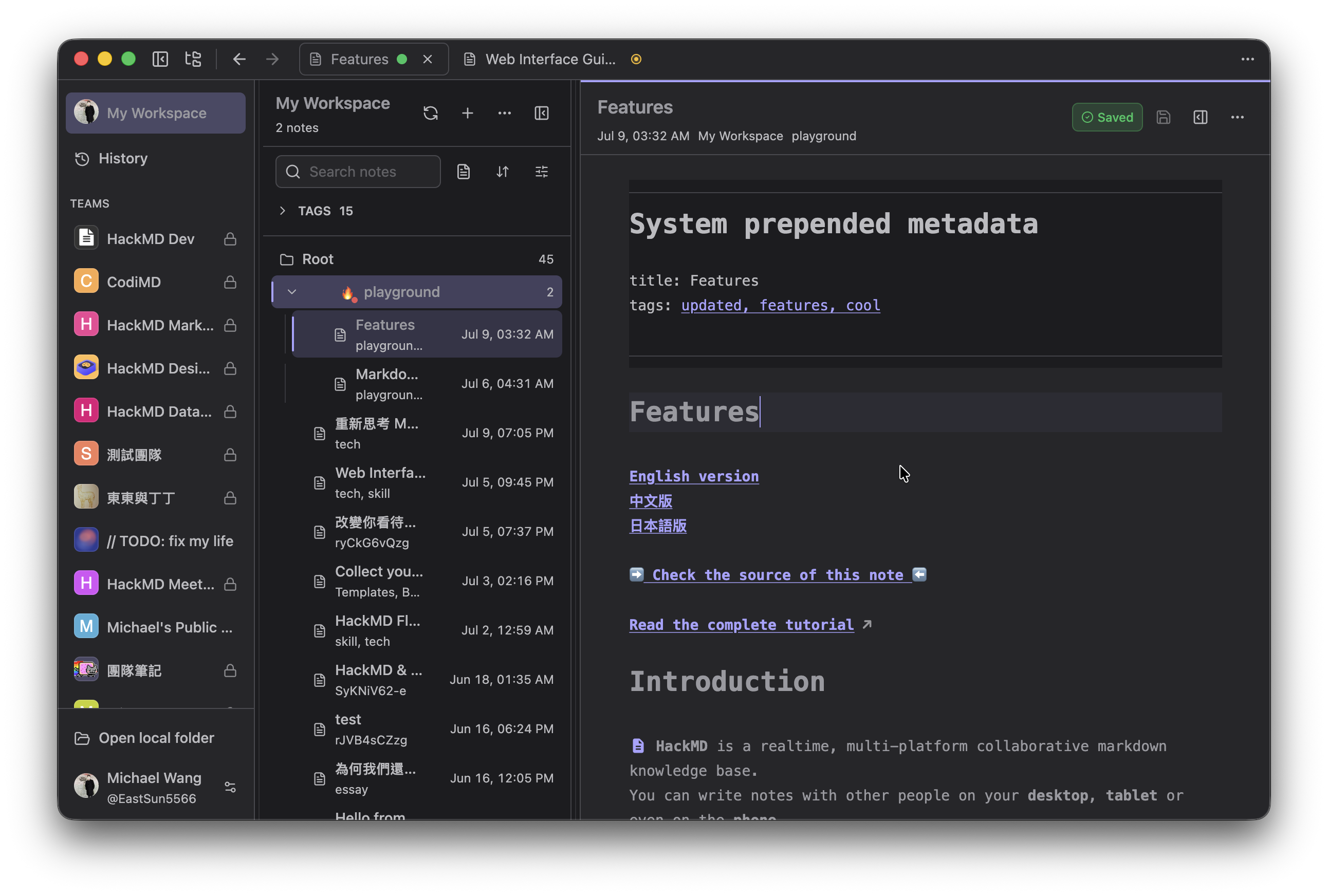
V2 development build with demonstration data.
Choose a workspace
The workspace sidebar separates your note collections:
- My Workspace contains your personal HackMD notes
- Pinned contains the teams you use most
- More contains unpinned teams
- Local Vault opens the selected local Markdown folder
- History shows recent HackMD browsing activity
Hover a team row to pin or unpin it. Drag pinned teams to reorder them. My Workspace stays first. Use the keyboard shortcuts to switch workspaces without the pointer.
Opening another Local Vault restores that vault's own tabs and recoverable drafts. A Local Vault does not automatically upload notes to HackMD.
Find and organize notes
Use Search notes to filter the selected workspace. Expand folders in the navigator, or use the tag browser to narrow the list.
Create folders with New Folder. Use a folder's menu to edit or delete it, or drag notes and folders to move them. Local deletion moves files to the system trash; HackMD deletion affects remote notes.
Press Cmd+P / Ctrl+P for Quick Open to search notes, folders, and workspaces. Press Cmd+K / Ctrl+K for the Command Palette to find actions.
Arrange tabs and panes
Select a note to open it in a tab. Drag a tab's icon or title to reorder tabs within its pane.
To compare two notes:
- Open a note and choose Pane actions → Split Right.
- Open another note in the other pane.
- Drag the divider to resize the panes.
HackDesk supports two editor panes. Use Move Tab to Other Pane to move a tab between them. The tab strip follows the active pane.
Close Tab closes the active tab and keeps the workbench open after the last tab. When prompted about unsaved changes, save or discard them before closing.
Save changes
Choose Save in the document toolbar to write the active note to its workspace. Save status distinguishes changes still in the editor from a saved note.
HackDesk keeps recovery copies of unsaved edits. Recovery does not replace saving, and a reported backup failure means the edits need attention. If a note changed elsewhere, review the conflict or recovery message before saving again.
Edit Note Details
Open Note Details to change the title and inspect metadata. HackMD notes also expose tags, permissions, and sharing information where supported.
Local files and HackMD notes have different metadata. Controls reflect the selected workspace; they do not provide full team administration.
For capture outside the main window, use Quick Hack. For editor modes and appearance, customize HackDesk.