
Navigate with the keyboard
Move through the workbench, find commands, and discover available actions without memorizing every shortcut. These are default bindings; Settings and Keyboard Shortcuts help show your current configuration.
Find commands and shortcuts
Open the Command Palette with Cmd+K on macOS or Ctrl+K on Windows/Linux. Search for an action and press Enter to run it.
Open Keyboard Shortcuts from Help or the command palette to search bindings for the current region or all actions. Outside text editing, ? also opens help.
| Action | macOS | Windows / Linux |
|---|---|---|
| Quick Open | Cmd+P | Ctrl+P |
| Command Palette | Cmd+K | Ctrl+K |
| Settings | Cmd+, | Ctrl+, |
| New note | Cmd+N | Ctrl+N |
| Save note | Cmd+S | Ctrl+S |
| Close active tab | Cmd+W | Ctrl+W |
| Next workbench region | F6 | F6 |
| Previous workbench region | Shift+F6 | Shift+F6 |
| Focus Note Finder outside text editing | / | / |
| Shortcut help outside text editing | ? | ? |
Move between regions
Press F6 to move through visible workspace controls, the navigator, tabs, editor panes, and expanded Note Details. Press Shift+F6 to move backwards. Collapsed or unavailable regions are skipped.
In tabs, use Left/Right or Home/End to move focus; Enter or Space selects the focused tab. In the folder tree, arrow keys move focus or expand and collapse folders; Enter selects a folder or opens a note.
Outside text editing, Ctrl+U and Ctrl+D scroll the focused UI region by half a page. Text editors retain their own bindings, including modal editor commands.
Reveal navigation hints
Hold Cmd on macOS or Ctrl on Windows/Linux to reveal shortcuts and navigation codes for visible workbench elements.
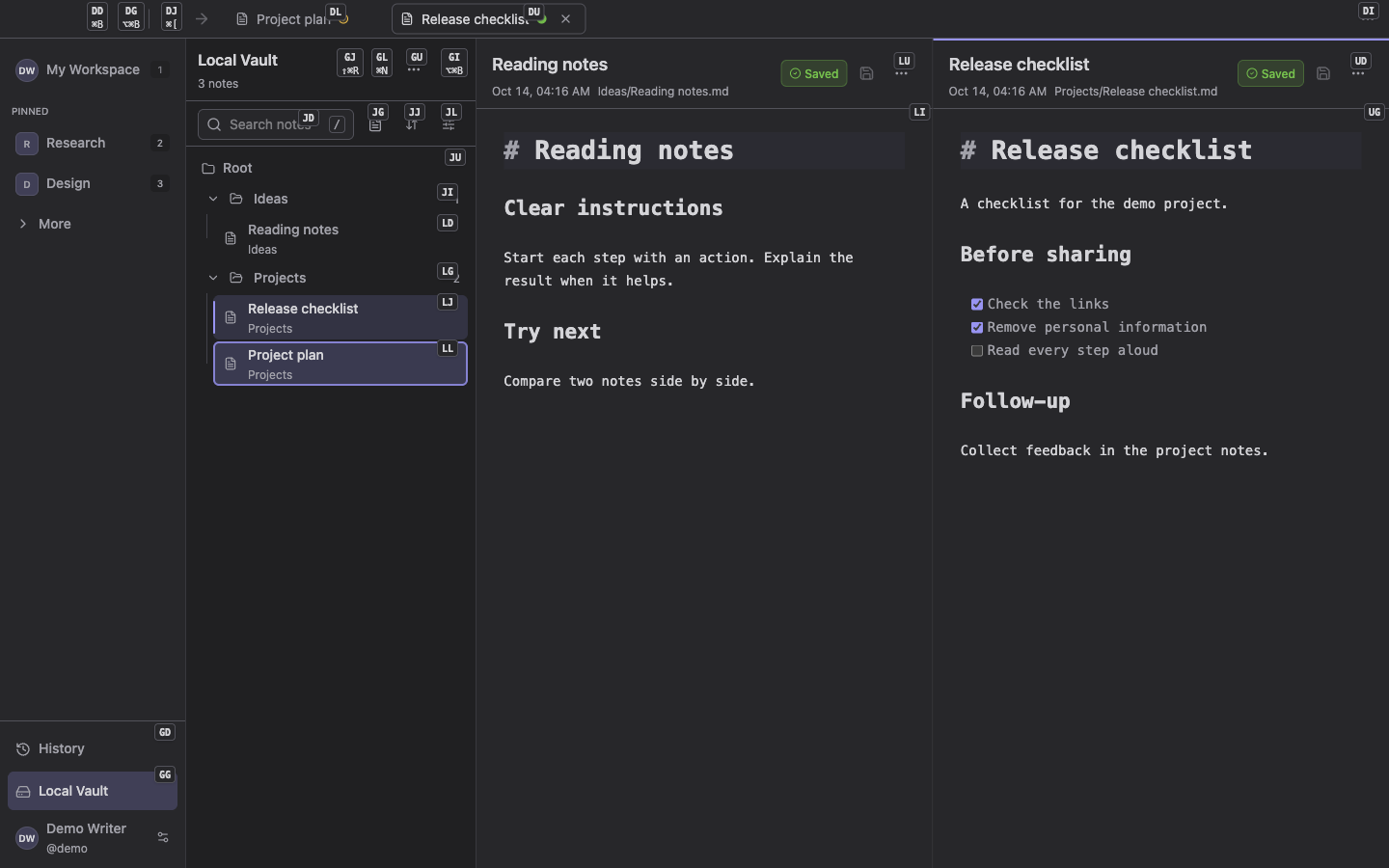
V2 development build with demonstration data. Codes depend on the current targets and available keys.
Keep the modifier held and type a displayed code. Notes, folders, tabs, and workspaces navigate directly. An ordinary action button receives focus; press Enter to execute it.
Press Backspace to remove a code prefix, Escape to cancel, or release the modifier to clear hints. Settings shows codes for its visible controls instead of workbench hints. A code focuses the control; press Enter or Space to operate it. Other dialogs, menus, and Quick Hack hide navigation hints. Recording a custom shortcut also hides hints.
Cmd+1 / Ctrl+1 selects My Workspace. Numbers 2–9 select the first eight pinned teams. Utilities such as Local Vault and History do not take a workspace number.
Customize bindings
Open Settings → Shortcuts to change or disable actions. The Enable ? and / outside text editing option controls the default character shortcuts. Input fields, text editors, and IME composition retain normal input behavior.
The hint allocator avoids occupied keys. If no safe codes remain, it explains the limitation; use F6, normal tab navigation, or the command palette instead.