Get started
Open a local Markdown folder or connect HackMD, then create and save a note. Install HackDesk before following these steps.
Version
These guides follow the current v2 development build. Published betas can differ. Screenshots use fictional demonstration data.
Open a Local Vault
A Local Vault is a folder of Markdown files on your computer. It does not require an account.
- Open HackDesk and choose Open local folder.
- Select an existing Markdown folder or an empty folder for new notes.
- Select a note in the navigator to open it.
HackDesk reads Markdown files from the selected folder. Work with notes explains folders, tabs, and split panes.
Connect HackMD
Connect your account to browse personal notes and team workspaces.
- Create an API token in HackMD settings.
- Open HackDesk Settings → HackMD.
- Paste the token into API Token and choose Save.
- Select My Workspace or a team in the workspace sidebar.
HackDesk validates and stores the token locally using operating-system encryption. Keep tokens out of shared screenshots and configuration examples.
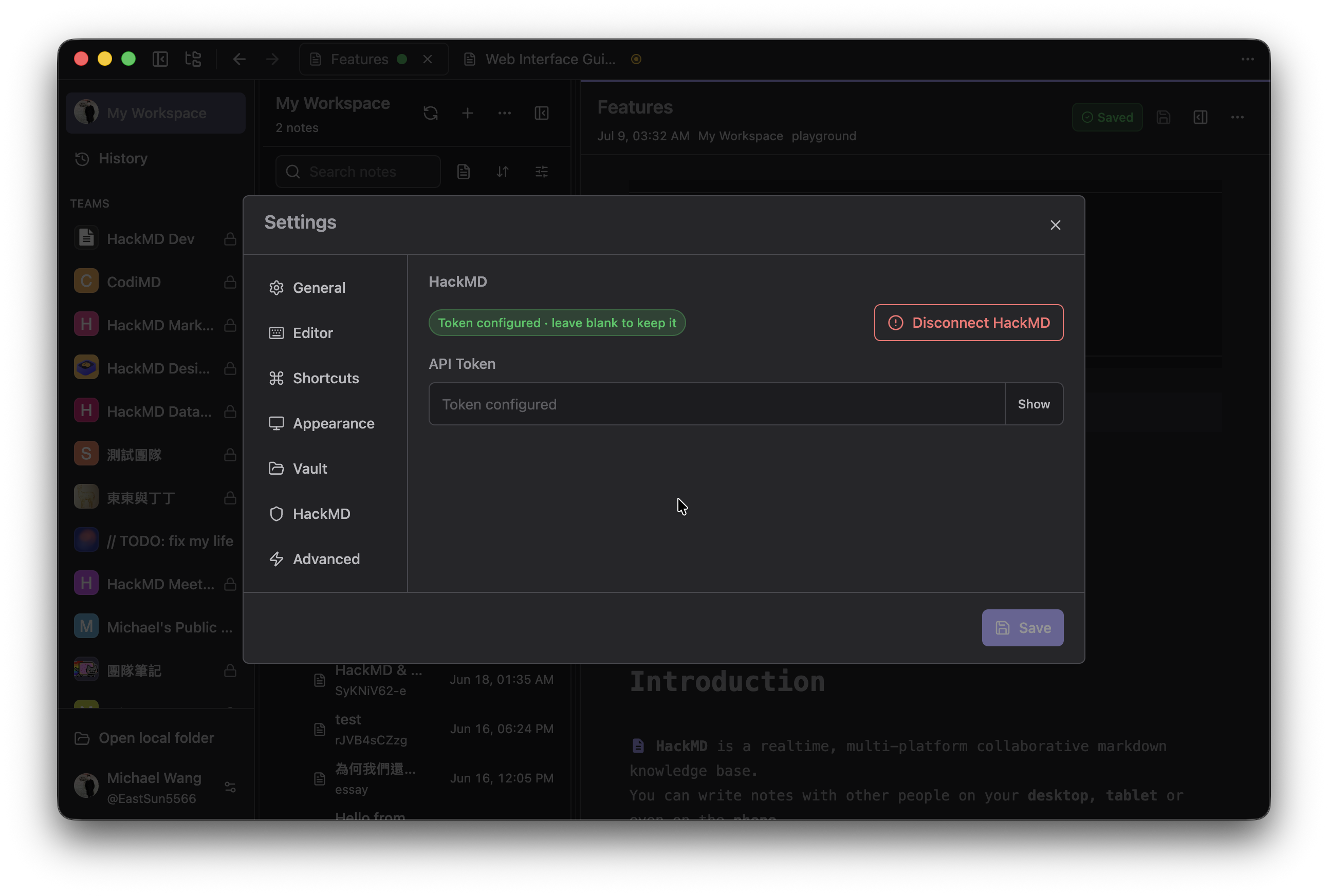
V2 development build with a fictional connected account. No token is shown.
Create and save a note
Create notes in the selected workspace. In a Local Vault, saving writes a Markdown file; in a HackMD workspace, saving sends the note to HackMD.
- Select the destination workspace and, optionally, a folder.
- Choose New Note from the command palette or press Cmd+N on macOS, Ctrl+N on Windows/Linux.
- Enter a title and Markdown content.
- Choose Save in the document toolbar, or press Cmd+S / Ctrl+S.
Wait for Saved before treating the note as written to its destination. A recoverable draft is not the same as a saved file or HackMD note.
Continue with Quick Hack to capture a draft from another app, or keyboard navigation to move through the workbench.