
Customize HackDesk
Use Settings to change appearance, editor mode, shortcuts, or the connected account. Open it with Cmd+, on macOS or Ctrl+, on Windows/Linux.
Use Search settings in the sidebar to find a field. For example, search font and choose Editor font to open Appearance and focus that input. Searching does not save your changes.
Change appearance
Open Settings → Appearance to choose a theme, colors, fonts, and text sizes. Preview changes, then choose Apply Theme to keep them or Cancel Preview to return to the saved appearance.
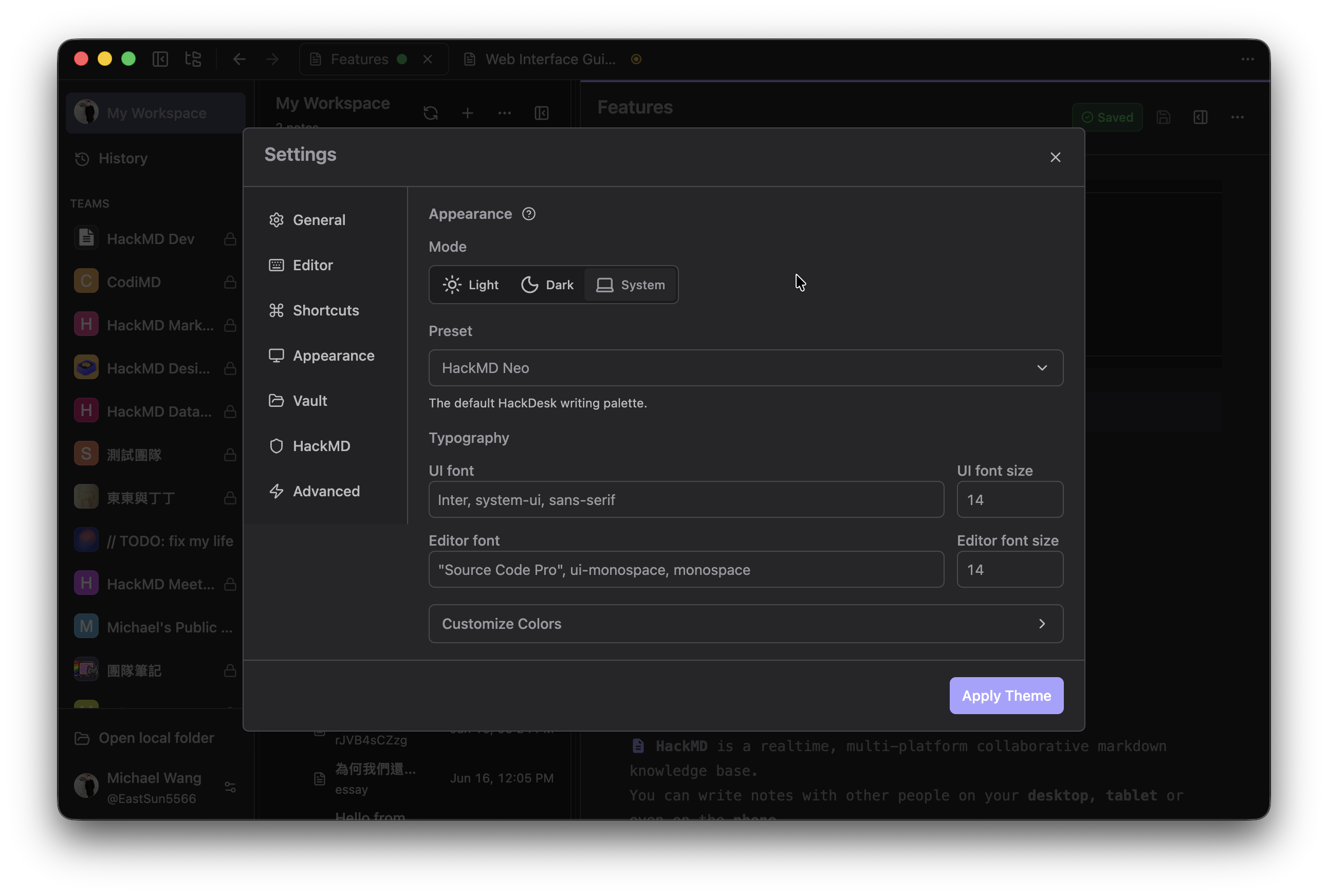
V2 development build with demonstration data.
Choose an editor mode
Open Settings → Editor, select a mode, and choose Save. Available modes are Standard, Vim, Helix, Emacs, and experimental Kakoune.
These modes change editing keys. Workbench navigation remains separate from text-editor commands.
Change shortcuts
Open Settings → Shortcuts, search for an action, and record a replacement shortcut. Choose Save to keep changes. Use the reset control to restore an action's default.
The same panel lets you disable ? and / outside text editing. Quick Hack's global Ctrl+Alt+H is fixed in this version; its row reports whether registration succeeded.
Manage your account and vault
Use Settings → HackMD to connect or disconnect an account. Disconnecting removes HackDesk's stored token without deleting remote notes or Local Vault files.
Use Settings → Vault to choose or forget a Local Vault. Forgetting a vault does not delete its Markdown files.
Edit settings.json
For changes outside Settings, quit HackDesk first. Edit the existing file and preserve unrelated fields. Changes load on the next launch.
| Platform | File |
|---|---|
| macOS / Linux | ~/.hackdesk/settings.json |
| Windows | %USERPROFILE%\.hackdesk\settings.json |
This example changes the editor mode and command-palette shortcut. Merge these fields into your existing configuration rather than replacing the file:
{
  "editor": { "mode": "vim" },
  "shortcuts": { "open-command-palette": "mod+j" }
}
Here, mod means Cmd on macOS and Ctrl on Windows/Linux. Set tokens and vault paths through Settings; do not copy them into shared configuration.
Protect the HackMD token
HackDesk encrypts stored tokens using the operating system. Set or replace tokens in Settings; do not edit encrypted token fields manually.
Existing plaintext tokens migrate when encryption is available. If the system keyring is locked or unavailable, follow the Settings error message. Local Vault remains usable. Linux's plaintext keyring fallback is not accepted for storing new tokens.
Recover damaged settings
If HackDesk cannot read settings.json, it opens a recovery dialog instead of the workbench. Choose an action:
- Try Again reloads the file after you fix it
- Reveal Settings File locates the file
- Quit leaves the file unchanged
- Back Up and Reset… asks for confirmation, backs up the damaged file beside it, and starts with defaults
After a reset, reconnect HackMD and select your Local Vault again. Settings → Advanced → Reset All Settings also resets preferences without deleting Local Vault files.